For years, the promise of a truly global internet has been fractured by the invisible wall of language. We browse to its edges, only to find vibrant conversations rendered incomprehensible. A new browser extension, “Bridge,” aims not just to lower that wall, but to make it dissolve entirely.
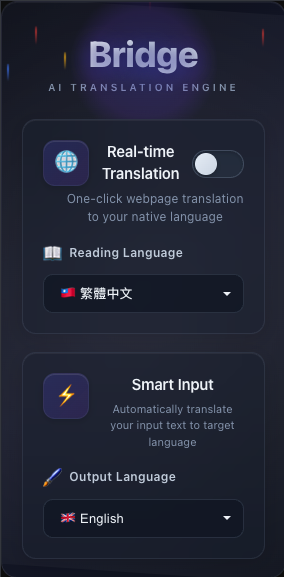
Bridge operates on a powerful two-way principle. Its immersive reading mode transforms any webpage into a dual-language view, placing accurate translations alongside the original text. This allows for nuanced understanding without losing context. More importantly, it empowers users to participate. Within any text box, one can type in their native tongue, and with a simple shortcut, Bridge instantly converts their thoughts into fluent, natural-sounding prose in the target language, eliminating the friction of traditional translation.
What truly sets Bridge apart is its architecture. Unlike services that process data in the cloud, it leverages Chrome’s built-in, on-device AI. The implications are profound: absolute user privacy, as data never leaves the machine; instantaneous speed free from network latency; and full offline functionality.
This isn't just another translation tool; it's a new paradigm for web interaction. Bridge is designed not merely to translate content, but to foster genuine dialogue, giving everyone the confidence to step across the linguistic divide and join the global conversation.
To install the Bridge browser extension, follow these steps:
- Node.js (version 22.14 or higher)
- npm (comes with Node.js)
- Google Chrome browser
-
Clone or download the repository:
git clone https://github.com/Poseidoncode/Bridge.git -
Open Project and Navigate to the extension directory:
cd translationgummy-extension -
Install dependencies:
npm install -
Build the extension:
npm run build -
Load the extension in Chrome:
- Open Google Chrome.
- Go to
chrome://extensions/. - Enable "Developer mode" in the top right corner.
- Click "Load unpacked" and select the
distfolder inside thetranslationgummy-extensiondirectory.
The Bridge extension should now be installed and ready to use. You can access it from the extensions menu in Chrome.
Bridge offers two main features to enhance your web interaction across languages:
- How to activate: Click the Bridge extension icon in your browser toolbar while on any webpage.
- What it does: Transforms the current webpage into a dual-language view, displaying the original text alongside accurate translations.
- Benefits: Allows for nuanced understanding without losing context, making it easier to read and comprehend content in foreign languages.
- How to use: In any text input field (such as comments, forms, or chat boxes), type your message in your native language.
- Translation shortcut: Press the designated shortcut key (default: Shift+S) to instantly convert your text into fluent, natural-sounding prose in the target language.
These features work together to break down language barriers, enabling you to both consume and contribute to global conversations seamlessly.
© 2025 Ray Hung. All Rights Reserved.
This project is not open-source.